Skip to content
Truman State University
  • Admission
  • Academics
  • Alumni
  • About
  • Student Life
  • News & Events
  • Truview Login
  • Athletics
  • Directory
  • Home
  • FAQs
    • FAQ
    • How do I?
    • Make Accessible Course Materials
    • Accessibility Tools
    • Requesting a Zoom Account
    • Zoom Cloud Storage Rules for Truman Videos
    • Get Training
    • Learn more about recommended software at Truman?
    • Learn More About Baldwin Hall’s Classroom Features
    • Put in a Service Center (Help Desk) request?
    • Use Classroom Controls – The Chumby
    • Use Classroom Controls – The Pixie
    • Acquiring Software at Truman
    • Information Technology Services
  • Tech Breaks
  • Teaching Online
    • Teaching Online
    • Resources and Tutorials to help you teach from a distance
    • Comply with TEACH Act?
    • Resources to Address Online Integrity
    • Learning Online
  • D2L Brightspace
    • Brightspace Log-in
    • Brightspace FAQs for Faculty
    • Brightspace Training Page for Faculty
    • Brightspace for Students
  • Video and Recording
    • Zoom Resources
    • Video Editing and Uploading
    • Videoconferencing at Truman
    • Videoconferencing and Webinar Support
    • Download, Storing, and Sharing Panopto Files
    • Lecture Capture/Videoconferencing in Classrooms, Fall 2020
  • Classroom and Facilities
    • Multimedia Lab
    • Multimedia Resources
  • Google Resources
    • Setting Permissions on Google Drive
    • Making Links – Google Drive to Blackboard
  • Proctored Online Testing
  • Ally Resources
  • Home
  • Accessibility Scores

Accessibility Scores

Accessibility scores are a way of measuring how accessible your files on Blackboard are.

Accessibility scores are only visible to instructors in an Ally course- however, it can be useful to be mindful of this when in situations in which you might be sharing your screen (such as when logging into Blackboard during class).

To see your Accessibility score, hover your mouse over the odometer next to your content.
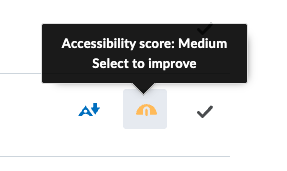
Your score will be displayed- additionally, both the color (red to green) and the position (left to right) of the odometer can provide you with visual information of how accessible the piece of content is.

Clicking on the “Click to improve” tag will prompt Ally to assist you in fixing this content to improve its accessibility score. Ally will be able to walk you through many of these fixes, but you can check out our fixes tutorials here.


Truman Logo
#1 for 26 consecutive years
Truman State University
100 E. Normal Avenue
Kirksville, MO 63501 USA
(660) 785-4000
©2026 Truman State University
   Contact Us
Give To Truman
  • Get to Know Truman
    • Admission
    • Academics
    • Alumni
    • Student Life
    • About Truman
  • Explore
    • News & Events
    • Athletics
    • Directory
    • Parents & Families
    • Employment
    • TruView
    • Maps & Directions
  • Policy and Safety
    • Policies
    • Title IX/Statement on Non-Discrimination
    • Disclosures
    • Privacy Policy
    • Accessibility
    • Emergency Information

Truman State University is an equal opportunity and affirmative action employer.

Back to Top